
Controlling order
By default, items in each directory appear in natural sort order, with directories listed before files. There are two ways to change the order — pick the one that fits your workflow.
Option 1: Order files
Create a plain text file named order in any directory. List the items that should appear first, one per line:
README.md
Quick start.md
The listed items come first in the exact order given. Everything else follows in natural sort order. Create a separate order file in each directory you want to customize.
This approach works well when docs are generated from code or with an LLM — it is simple, predictable, and easy to produce programmatically.
Option 2: Explorer Sort VS Code plugin (visual, drag-and-drop)
If you write docs in VS Code, the Explorer Sort extension lets you reorder files and folders by dragging them in the file explorer panel — the same way you would reorder items in any list. What you see in VS Code is what you get in the published site.
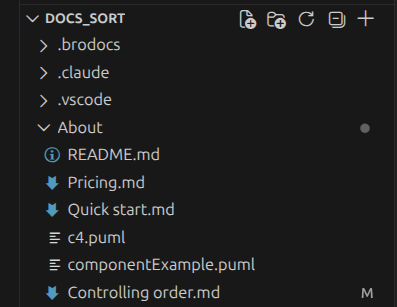
Setup:
- Install the Explorer Sort extension from the VS Code Marketplace.
- Open your docs repository in VS Code.
- Drag files and folders in the Explorer panel into the order you want.
The extension saves the order to .vscode/settings.json in your repository. Brodocs reads this file automatically during site generation, so the published left menu reflects your visual arrangement without any manual editing.
When to use this option: When you prefer a visual interface over editing text files, and you are already working in VS Code.